Best Hardware for HomeLab Server 2026: The Ultimate Guide
1. Introduction: Finding the Best Hardware for HomeLab Server 2026
We’ve officially entered an era where the average home server can easily go toe-to-toe with small business infrastructure. As we continue to push the boundaries of self-hosting, AI automation, and container orchestration, relying on sluggish legacy systems just isn’t a viable option anymore. Whether your goal is to build a robust virtualization host for Proxmox, a dedicated TrueNAS storage NAS, or a local Kubernetes cluster, sourcing the best hardware for homelab server 2026 sets the foundation for your ultimate success.
When we talk about the best hardware for homelab server 2026, we’re looking at power-efficient processors like the AMD Ryzen 9000 or Intel Core Ultra series, paired with DDR5 ECC memory on W680 or B650E motherboards, and blazing-fast PCIe 5.0 NVMe storage. By combining these cutting-edge components with 2.5GbE or 10GbE networking, you can guarantee top-tier performance for even the most demanding modern workloads.
However, the biggest hurdle most tech enthusiasts run into today is sheer decision fatigue. Thanks to entirely new CPU architectures, the ongoing transition to DDR5, and an explosion of ultra-fast networking standards, putting together a perfectly balanced server is trickier than ever. If you overprovision, you end up wasting your hard-earned budget, but if you underprovision, you’re left dealing with frustratingly sluggish performance.
Throughout this comprehensive guide, we’ll break down the exact components required to build a genuinely future-proof setup. We’ll explore the root causes of performance bottlenecks, highlight accessible entry-level solutions, and walk you through creating the ultimate advanced build for your 2026 home data center.
2. Why This Problem Happens
Before we dive straight into specific hardware recommendations, it’s incredibly important to understand the technical root causes behind server bottlenecks. Whenever you run multiple virtual machines (VMs) and Docker containers at the same time, your system resources are fundamentally divided, which can quickly lead to severe strain.
The single most common issue usually stems from I/O (Input/Output) limitations tied to legacy storage solutions. For instance, if you install incredibly fast, modern processors but continue to rely on slow mechanical hard drives without a proper solid-state cache, your VMs are going to suffer from sky-high I/O wait times. In this scenario, your shiny new processor is left sitting completely idle while it waits for an outdated storage controller to finally catch up.
Memory exhaustion is another incredibly frequent bottleneck that catches people off guard. Leading virtualization platforms like Proxmox VE and VMware ESXi require a dedicated chunk of RAM for every single guest operating system. The moment you run out of physical memory, the system is forced to swap memory blocks over to your storage drive—a process that will instantly crush your server’s overall performance.
Finally, outdated networking infrastructure often creates frustrating artificial limits. A standard 1GbE network caps your transfer speeds at roughly 110 to 125 MB/s, which makes migrating massive virtual machines or shifting heavy media files a painstakingly slow process. Having a firm grasp of these technical constraints will ensure that you allocate your budget toward the right components from the start. For even more advice on structuring your environment effectively, be sure to check out our HomeLab setup resources.
3. Quick Fixes / Basic Solutions
If you are just kicking off your self-hosted journey, there’s absolutely no need to drop cash on expensive, enterprise-grade rackmount servers right out of the gate. Instead, here are some highly actionable steps and basic hardware fixes to help you piece together a capable, budget-friendly home server setup.
- Opt for Modern Mini PCs: The micro-PC market is currently booming with incredibly capable little devices. Systems powered by Intel’s N100 or N97 processors offer fantastic power efficiency, typically drawing less than 15 watts of power while effortlessly handling lightweight Linux distributions and numerous Docker containers.
- Repurpose Used Enterprise Gear: Small Form Factor (SFF) desktop PCs, such as the Dell OptiPlex micro or Lenovo ThinkCentre lines, make absolutely fantastic starting points. You can easily find refurbished models boasting 8th or 9th-generation Intel Core i5 processors for a mere fraction of what brand-new parts would cost.
- Upgrade Your Storage Immediately: The absolute fastest way to breathe new life into a sluggish basic server is by dropping in an affordable SATA SSD or an NVMe drive. If you care about long-term reliability, you should never boot your host operating system from a USB thumb drive or a flimsy SD card.
- Max Out the System RAM: If the mini PC you’ve chosen supports 32GB or 64GB of DDR4 RAM, do yourself a favor and upgrade to that maximum limit right away. Having more memory on hand gives you the flexibility to spin up entirely new services without slamming into immediate hardware constraints.
4. Advanced Solutions
Of course, for seasoned DevOps engineers, IT professionals, and general power users, an entry-level mini PC simply isn’t going to cut it. You need a highly robust architecture that is fully capable of tackling heavy workloads, demanding CI/CD pipelines, and even local large language models (LLMs). Let’s break down the technical specifics of the advanced hardware you’ll actually need.
Processors (CPU) Selection
Think of the CPU as the primary brain running your entire virtualization host. Moving into 2026, maximizing power efficiency while maintaining high core counts is absolutely paramount. AMD’s newest Ryzen 9000 series desktop processors deliver truly incredible multi-threading performance, making them an ideal choice for safely assigning multiple vCPUs across your various virtual machines.
On the flip side, Intel’s Core Ultra chips utilize an innovative design featuring dedicated Efficiency (E) and Performance (P) cores. Major platforms like Proxmox and modern Linux kernels have heavily refined their task scheduling protocols to fully exploit this hybrid architecture, which in turn drastically lowers your system’s overall idle power consumption.
Motherboards and Memory (RAM)
When it comes to serious data integrity—especially if you plan on running ZFS file systems via TrueNAS—ECC (Error-Correcting Code) memory comes highly recommended. You’ll want to keep an eye out for W680 chipset motherboards if you’re using Intel CPUs, or B650E/X670E boards for AMD processors, making sure they officially support unbuffered ECC DDR5 memory.
For a truly modern build, we strongly recommend starting with somewhere between 64GB and 128GB of DDR5 RAM. This guarantees you will have plenty of operational overhead for handling high-availability clusters and implementing complex Automation best practices.
Storage Architecture and Drives
While mechanical hard drives (HDDs) still reign supreme for cheap, high-capacity bulk media storage, your primary application pools need to run exclusively on solid-state media. Upgrading to PCIe 5.0 NVMe SSDs will provide you with massive bandwidth for intensive database operations, local AI inferencing, and lightning-fast VM boot times.
As a golden rule, always set up a mirrored VDEV (the equivalent of RAID 1) to house your host operating system. Then, for storing your bulk data, rely on a highly resilient RAIDZ1 or RAIDZ2 configuration to properly insulate your files against unexpected physical drive failures.
High-Speed Networking and GPUs
In advanced lab environments, basic 1GbE networking is essentially obsolete at this point. Because of this, your chosen motherboard really should feature at least a built-in 2.5GbE network interface card (NIC). Furthermore, it’s wise to ensure you have an available PCIe slot so you can easily drop in a much faster 10GbE or 25GbE SFP28 network card down the road.
If your roadmap includes running local generative AI models or utilizing hardware-accelerated media transcoding, you must allocate sufficient PCIe lanes for a dedicated graphics card. For example, the NVIDIA RTX 4000 SFF Ada Generation GPU serves as an exceptionally powerful yet low-wattage option for anyone working with compact server racks.
5. Best Practices
Procuring excellent, top-tier hardware is really only half the battle. To guarantee your environment remains fast, stable, and secure over the long haul, you need to implement some strict server management rules.
- Focus on Power Efficiency: Running machines 24/7 means electricity costs can stack up surprisingly fast. Dive into your BIOS settings to undervolt your CPU, properly enable ASPM (Active State Power Management), and configure C-states so your system can drastically drop power consumption during idle periods.
- Implement Network Segmentation: It is highly risky to expose your critical management interfaces directly to your main home network. Instead, take the time to create dedicated, logically isolated VLANs to separate your messy IoT devices, guest Wi-Fi users, and backend server management tools.
- Secure Remote Access: Please, never rely on simple port forwarding on your home router for RDP or SSH access. You are much better off setting up a secure, zero-trust network overlay using tools like Tailscale, WireGuard, or Cloudflare Tunnels, which keeps your internal infrastructure completely invisible to the public internet.
- Automate Your Backups: The golden industry-standard 3-2-1 backup rule applies just as much to home server labs as it does to corporate networks. Make sure your critical configuration files and VM snapshots are backed up locally to a separate NAS device, and also pushed offsite to a secure cloud storage provider. Incorporating these resilient strategies heavily improves your DevOps workflows.
6. Recommended Tools / Resources
In order to squeeze the absolute maximum performance out of your newly acquired server hardware, you should pair it with the right management tools and physical accessories. Trust us, making these small investments early on will save you countless hours of frustrating troubleshooting later.
- PiKVM: This is a truly fantastic piece of open-source hardware that grants you KVM over IP functionality. It gives you direct remote access to the server’s low-level BIOS, which becomes an invaluable lifeline if a machine suddenly crashes and completely loses its network connectivity.
- Uninterruptible Power Supply (UPS): Purchasing a high-quality, pure sine wave UPS from a reputable brand like APC or CyberPower isn’t optional; it’s mandatory. This device protects your expensive DDR5 RAM and delicate NVMe storage drives from severe, irreversible data corruption during sudden neighborhood power outages.
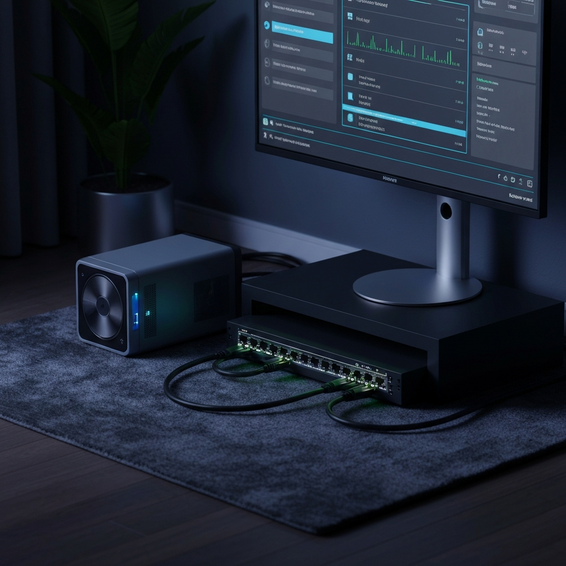
- Managed Network Switches: It is highly recommended to look into affordable managed switches from companies like Ubiquiti, Mikrotik, or TP-Link Omada. Make certain that they actively support 2.5GbE base ports alongside 10GbE SFP+ uplinks so they can easily handle massive internal data transfers without breaking a sweat.
- Proxmox VE: Widely regarded as the absolute best open-source virtualization platform on the market, Proxmox allows you to oversee and manage your high-end compute resources incredibly efficiently, all from a beautifully designed web interface.
7. FAQ Section
How much RAM do I need for a homelab?
If you’re just piecing together a basic setup to run lightweight Docker containers—think Pi-hole, Portainer, and Home Assistant—16GB of RAM is usually plenty to get the job done. However, if you are stepping up to an advanced virtualization environment that runs Proxmox with multiple operating systems, aggressive ZFS storage caching, and heavy Kubernetes clusters, aiming for 64GB to 128GB of DDR5 RAM is definitely the recommended sweet spot.
Is an old enterprise server better than a modern mini PC?
The answer to this really depends entirely on your specific end goals. Older enterprise servers (such as a classic Dell PowerEdge R730) bring massive PCIe expandability, native ECC RAM capabilities, and the safety of redundant server power supplies to the table. On the downside, they are notoriously loud, generate an uncomfortable amount of heat, and consume massive amounts of electricity. Conversely, a modern mini PC is vastly more power-efficient and whisper-quiet, though it completely lacks that deep physical PCIe expandability.
Do I absolutely need a GPU in my homelab?
For standard tasks like simple file sharing, spinning up domain controllers, or handling basic network management, a dedicated GPU is definitely not necessary. That being said, if you have plans to transcode rich 4K media in Plex or Jellyfin, tinker with local AI generation models, or utilize hardware acceleration for complex machine learning projects, adding a dedicated GPU is highly recommended.
8. Conclusion
Ultimately, building a reliable and genuinely robust home server is an exercise in carefully balancing raw compute performance, ongoing power consumption, and your overall budget. By thoughtfully selecting the best hardware for homelab server 2026, you establish a rock-solid, future-proof foundation that is fully capable of running everything from simple family file shares all the way up to complex, enterprise-grade container deployments.
As you start shopping, remember to prioritize incredibly fast PCIe 5.0 NVMe storage, generous amounts of DDR5 memory overhead, and highly capable modern multi-core processors. If you are a total beginner, it is perfectly fine to start small with a modest mini PC. Still, you should always keep modular expandability in mind if you eventually intend to dive deep into the world of DevOps, dense container orchestration, and advanced home automation.
Finally, don’t forget to protect your hard-earned investment. Make sure to buy a highly reliable UPS, lock down your management network using strict zero-trust protocols, and take the time to truly enjoy the incredible flexibility and endless learning opportunities that naturally come with hosting your very own private cloud infrastructure.
About the Author