How to Speed Up Old Laptop Windows: The Ultimate Technical Guide
Is your trusty laptop taking forever to boot up, load a webpage, or open everyday apps? You’re definitely not the only one dealing with this. As internal hardware ages and modern software becomes more demanding, computers inevitably start to suffer from frustrating lag and unresponsiveness.
But if you want to speed up old laptop windows, there’s no need to rush out and buy a brand-new machine just yet. More often than not, a handful of strategic operating system tweaks and a few budget-friendly hardware upgrades are all it takes to breathe new life into an aging PC.
In this guide, we’ll walk through a mix of quick software fixes and slightly more advanced IT solutions designed to supercharge your laptop’s performance. Whether you just use your computer for basic browsing or you’re a seasoned tech enthusiast, these actionable steps can help you restore that lost speed.
Why This Problem Happens
Before we dive straight into the fixes, it helps to understand exactly why your system is slowing down. Over years of daily use, Windows operating systems naturally accumulate gigabytes of temporary files, background processes, and registry bloat. Every time you install or uninstall a piece of software, tiny digital remnants get left behind, gradually cluttering up your system’s architecture.
On the hardware side of things, traditional Hard Disk Drives (HDDs) physically degrade as they age. Because they rely on spinning magnetic platters, they inevitably suffer from data fragmentation and standard mechanical wear and tear. At the same time, modern web browsers, Electron-based apps, and background services are hungry for resources—consuming significantly more Random Access Memory (RAM) today than they did even five years ago.
When your computer runs out of physical RAM, it’s forced to rely on a “pagefile” stored on that much slower hard drive to manage active memory. The constant reading and writing back and forth to a sluggish disk creates a massive bottleneck. Fortunately, by tackling these software inefficiencies and hardware limitations head-on, you can dramatically improve your laptop’s performance without breaking the bank.
Quick Fixes to Speed Up Old Laptop Windows
If you’re looking to speed up old laptop windows right away, start with these core software adjustments. These basic steps don’t require any special technical expertise, yet they offer immediate and highly noticeable results.
- Disable Heavy Startup Programs: Many everyday applications are sneaky—they configure themselves to launch automatically the moment you boot up your machine. This drags down startup times and chews through processing power. To fix this, open your Task Manager by pressing Ctrl + Shift + Esc, then head over to the “Startup” tab. Simply right-click and disable any non-essential programs (like Spotify, Skype, or your cloud syncing clients) that you don’t strictly need right away.
- Remove Pre-Installed Bloatware: It’s no secret that laptop manufacturers love bundling their hardware with unnecessary trial software, widely known as bloatware. This digital junk continuously runs in the background, draining your battery and stealing processing power. Head over to Settings > Apps > Apps & features, and take a few minutes to uninstall programs you know you never use. It’s a remarkably simple way to free up valuable disk space while reducing background overhead.
- Optimize Windows Power Settings: Right out of the box, Windows defaults to a “Balanced” power plan that intentionally throttles your CPU’s performance to extend battery life. But if you primarily use your laptop plugged into the wall, you’re missing out on potential speed. Make your computer run faster by searching for “Choose a power plan” in the Start menu, then selecting “High Performance.” This single tweak allows your CPU to run at its maximum available clock speed.
- Run Disk Cleanup and Storage Sense: Temporary files, old update caches, and obscure system error logs have a habit of silently clogging up your main storage drive. Type “Disk Cleanup” into the Windows search bar, select your primary OS drive, and wipe out those accumulated junk files. If you’re on Windows 10 or 11, you can take it a step further by enabling “Storage Sense” in your settings, which automatically handles this clearing process for you every month.
Advanced Solutions for Better Performance
If you’re a bit more comfortable popping the hood or tinkering with technical settings, these advanced solutions will deliver the most significant, long-lasting speed boosts. In fact, when you ask an IT professional for advice, their first recommendation is almost always targeted hardware optimization.
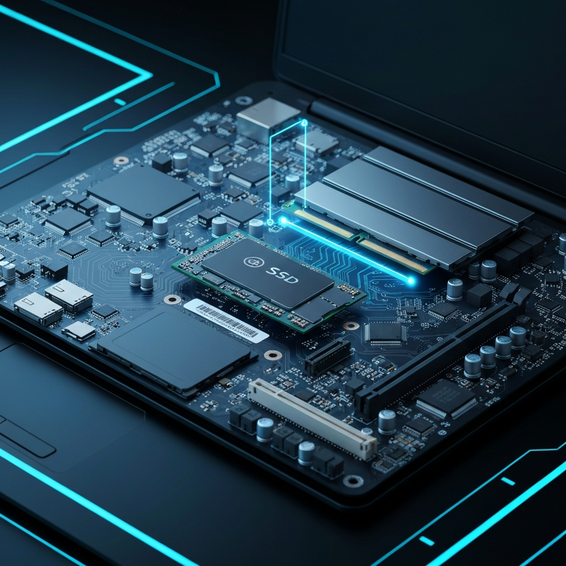
- Upgrade to a Solid State Drive (SSD): Swapping out an aging mechanical HDD for a modern SSD is, hands down, the single most effective way to salvage a slow laptop. Because SSDs use flash memory and have zero moving parts, they can be up to 10 times faster than traditional hard drives. After this upgrade, you’ll watch your boot times drop from agonizing minutes to mere seconds, while applications will start opening almost instantly.
- Maximize Your RAM Capacity: Is your laptop currently limping along on 4GB or 8GB of RAM? If so, bumping that up to 16GB will completely transform how you multitask. Just check your laptop manufacturer’s documentation to verify your maximum supported memory and the correct DDR generation before buying. By giving your system plenty of RAM, you stop Windows from ever having to fall back on that terribly slow virtual memory pagefile.
- Disable Visual Effects and UI Animations: Modern versions of Windows are packed with visual animations, drop shadows, and slick transparency effects. While they look great, they chew up dedicated processing power. To reclaim those system resources, press the Windows key, search for “Advanced system settings,” and click “Settings” under the Performance section. Select the “Adjust for best performance” bubble to turn off those heavy UI animations for good.
- Utilize PowerShell Debloat Scripts: If you’re a developer, sysadmin, or just a heavy tinkerer, running a Windows debloat script via PowerShell is a fantastic way to slash underlying OS overhead. You can find robust, open-source scripts on GitHub that safely strip out built-in telemetry, disable forced Cortana background tasks, and halt unnecessary Windows services. Just make absolutely sure you create a system restore point before running any elevated administrative scripts!
- Rebuild the Windows Search Index: Sometimes, a corrupted search index can cause your laptop’s disk usage to unexpectedly spike to 100%. Rebuilding that index from scratch usually resolves this endless background scanning loop. Open your Control Panel, search for “Indexing Options,” hit “Advanced,” and finally click the “Rebuild” button. It might take a couple of hours to finish, but the resulting drop in idle CPU load is well worth the wait.
Best Practices to Maintain Windows Performance
Getting your aging device back up to speed is really only half the battle. If you want to maintain that crisp, snappy performance, you’ll need to build a few good administrative habits. Follow these optimization tips to keep your system stable, secure, and running smoothly for the long haul.
- Keep Your System Updated: Make it a habit to install the latest Windows updates, security patches, and OEM hardware drivers. Manufacturers frequently roll out BIOS updates and driver patches specifically designed to fix annoying memory leaks and better optimize how your system handles resources.
- Manage Device Temperatures: Laptops are notoriously prone to thermal throttling. Whenever your CPU or GPU gets too hot, the motherboard steps in and automatically slows down your clock speeds to prevent catastrophic damage. Always keep your laptop’s exhaust vents clear, try to use it exclusively on hard, flat surfaces, and consider applying some fresh premium thermal paste if you feel comfortable disassembling the chassis.
- Run Reliable Security Scans: Hidden malware, trojans, and background cryptominers are the ultimate silent performance killers. But rather than installing a heavy third-party antivirus suite that aggressively hogs system resources, you’re usually better off relying on the built-in Windows Defender. It’s incredibly lightweight, highly secure, and seamlessly integrated straight into the Windows kernel.
Recommended Tools & Resources
To help you along in your optimization journey, we’ve put together a quick list of highly recommended tools and hardware resources. These are the exact same utilities that IT professionals rely on every single day.
- BleachBit: This is a fantastic, completely open-source alternative to CCleaner. It does a wonderful job of scrubbing unnecessary files and protecting your privacy—all without constantly nagging you to buy a premium version.
- Crucial System Scanner: Not quite sure what kind of RAM or SSD will actually fit your specific laptop? The Crucial System Scanner will automatically analyze your motherboard and point you toward guaranteed compatible hardware upgrades.
- Samsung 870 EVO SSDs: If you do decide to take the plunge and upgrade your storage, the Samsung EVO series is widely considered the gold standard. They offer incredible reliability, impressive speed, and excellent built-in data migration software.
- O&O ShutUp10++: A brilliant little free antispyware tool. It gives you full, granular control over exactly which Windows background services and telemetry functions are actually allowed to run on your machine.
FAQ Section
Can I speed up my 10-year-old laptop?
You absolutely can. Now, it probably won’t be running the latest AAA video games anytime soon, but a 10-year-old laptop can still be perfectly fine for basic web browsing, streaming video, and typing up documents. If you really want to get the most out of ancient hardware, upgrading the primary drive to an SSD or installing a lightweight Linux distribution will give you the best possible results.
Is adding RAM enough to make my laptop faster?
Adding extra RAM will definitely help if you do a lot of intense multitasking or love keeping a dozen Chrome tabs open at once. However, if your laptop is still booting off an old, spinning HDD, simply tossing in more RAM won’t magically fix your slow Windows startup times or app loading speeds. To cure those specific bottlenecks, an SSD is truly a must-have.
Should I reinstall Windows to fix a slow laptop?
Performing a totally clean installation of Windows is actually a fantastic, cost-free way to wipe out years of registry bloat, tricky driver conflicts, and hidden malware. As long as you’ve securely backed up all your important files to the cloud or an external drive, a fresh OS install can easily make your machine feel like you just unboxed it yesterday.
Conclusion
Dealing with a sluggish, constantly freezing computer is incredibly frustrating—especially when you’re just trying to get some work done. But that doesn’t mean your only option is to drop thousands of dollars on a brand-new laptop. Once you understand the root technical causes behind these slowdowns, it’s surprisingly easy to take control of your hardware.
Whether you prefer to stick to simple software tweaks or you’re ready to invest in an SSD and some extra RAM, there are plenty of highly effective ways to speed up old laptop windows machines. Start simple: disable those aggressive background programs, practice good physical thermal hygiene (keep those vents clear!), and ensure your file system stays free of unnecessary bloatware.
If you follow these technical steps and adopt a few of the best practices we’ve outlined, you’ll optimize your operating system from the ground up. In the end, you’ll be rewarded with a noticeably faster, much more responsive, and highly efficient laptop experience that extends the life of your device for years to come.
About the Author